
Know Your Real Profit Margin: A Free Expense Tracker for Freelancers
Most freelancers can tell you what they earned last month. Far fewer can tell you what they actually kept. Here’s a free tool that closes that gap — and the thinking behind why it matters.
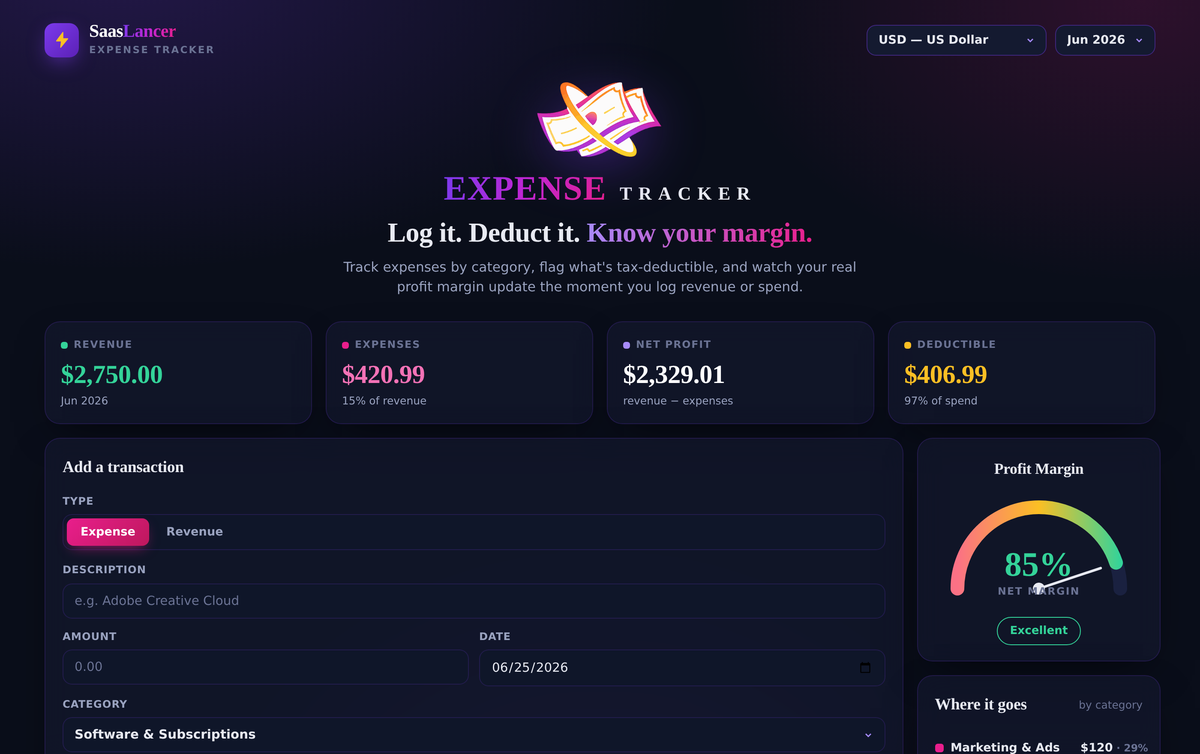
There’s a number that quietly decides whether your freelance business is healthy or just busy: your profit margin. Not your revenue — what’s left after the software subscriptions, the ad spend, the platform fees, and the hundred small costs that never make it into a spreadsheet. Revenue is the number we celebrate. Margin is the number that pays the rent.
The trouble is that expenses are boring to track and easy to forget. A $14 design asset here, a renewed subscription there, a platform fee skimmed off the top of every invoice — individually they feel like rounding errors. Added up across a year, they’re often the difference between a good rate and an underwhelming one. And when tax season arrives, the deductible ones you didn’t write down are simply money left on the table.
That’s the problem the SaasLancer Expense Tracker is built to solve. It’s a free, no-sign-up tool that does four things well: logs your spending by category, flags what’s tax-deductible, rolls everything into a clean monthly summary, and — the part most expense trackers skip — shows your real profit margin the moment you log revenue alongside it.
What it does, at a glance
Log spend by category
Eleven freelancer-tuned categories — software, marketing, contractors, fees, education and more — so you can see where the money actually goes.
Flag deductibles
Mark any expense as tax-deductible with one tap. Common categories are pre-flagged, so it’s usually already correct.
See your live margin
A profit-margin gauge updates in real time as you log income and expenses, with plain-English health bands.
Monthly summary
Filter to any month to see revenue, spend, net profit and deductibles for that period — or view it all-time.
Try it right here
No download, no account. Log a couple of real transactions below and watch the margin gauge move. Everything you enter stays in your own browser.
How it works, step by step
1. Log a transaction — expense or revenue
Each entry is either an expense or a piece of revenue. That second option is deliberate, and it’s what sets this tracker apart. A pure expense list can tell you what you spent, but it can’t tell you whether you came out ahead. By logging income too, the tool can do the one calculation that matters: how much of what you earned you actually kept.
2. Pick a category and confirm the deductible flag
Choose from eleven categories built around how independent professionals really spend — software and subscriptions, hardware, marketing and ads, contractors, education, internet and phone, banking and fees, and so on. Most of these default to “deductible” because in most places they are, so the flag is usually right out of the box. You stay in control of every entry; the defaults just save you taps.
3. Read your profit-margin gauge
This is the heart of the tool. Net margin is simply (revenue − expenses) ÷ revenue — the same profit-margin formula businesses of every size use — shown as a percentage for whatever period you’re viewing. The gauge translates that number into something you can feel at a glance:
- Below 0% — operating at a loss. You spent more than you earned this period.
- 0–10% — thin. Watch your costs; there isn’t much cushion.
- 10–25% — healthy. A solid, sustainable range for most solo businesses.
- 25–45% — strong. You’re keeping a real share of every dollar earned.
- 45%+ — excellent. Lean costs and strong pricing working together.
4. Track deductibles for a calmer tax season
Every expense you flag as deductible feeds a running “Deductible” total, and the tool shows what share of your spend it represents. Instead of reconstructing a year of receipts in a panic each spring, you finish every month with the number already tallied — and a CSV ready to hand to your accountant.
5. Switch months, switch currency, export
The month filter turns the whole dashboard into a monthly summary: pick June and every card, the gauge, and the table reflect June alone. You can report in any of 37 currencies — from USD, EUR and GBP to PKR, INR, CAD and AUD — which matters when you live in one currency and invoice in another. And one click exports everything to CSV for your records or your bookkeeper.
Why it’s actually useful
A margin number isn’t just a vanity metric — it changes decisions. A few ways freelancers put this tool to work:
- Catching subscription creep. Three “small” SaaS tools at $20 a month is $720 a year. The category breakdown makes that visible instead of invisible.
- Pricing with confidence. When you know your true margin, you know whether a discount is generous or self-defeating — and when a “busy” month was actually a thin one.
- Separating motion from progress. Two months can have identical revenue and very different margins. The gauge tells you which kind of month you just had.
- Tax prep without the dread. Deductibles are tagged as you go, so the year-end number is already sitting there.
It pairs naturally with the other money tools in the kit: set your floor with the Rate Calculator, watch the top line with the Income Dashboard, and use the Expense Tracker to make sure what you earn turns into what you keep.
A few habits that make it work
- Log in the moment. The best system is the one you actually use. Add the expense when it happens, from your phone, in ten seconds.
- Log revenue too. It’s tempting to track only spending, but without income the margin gauge has nothing to measure.
- Export monthly. A quick CSV at month-end gives you a backup and a paper trail your accountant will thank you for.
- Review the category breakdown. Once a month, glance at where the money went. The surprises are where the savings live.
Frequently asked questions
Is the Expense Tracker really free?
Yes — completely free, with no sign-up, no account, and no credit card. Open it and start logging.
Where is my data stored?
Everything stays in your own browser using local storage. Nothing is uploaded to a server. Clearing your browser data removes it, so use the CSV export to keep a backup.
How is the profit margin calculated?
Net margin is (revenue − expenses) ÷ revenue, shown as a percentage for the period you’ve selected. That’s why you log income alongside expenses — without revenue there’s no margin to measure.
Can I track more than one currency?
You can choose from 37 currencies as your reporting currency. It reports in one currency at a time and doesn’t convert exchange rates, so pick the currency you think in.
Which expenses count as tax-deductible?
That depends on your country and situation. The tracker pre-flags categories that are commonly deductible, but you decide on each entry. It isn’t tax advice — export your CSV and review it with your accountant.
Does it work on my phone?
Yes. The layout is fully responsive, so you can log a coffee or a software renewal the moment it happens.
See what you’re really keeping
Log a month of expenses and income, and let the gauge do the math.
Open the Expense Tracker →SaasLancer tools and articles are for general information and planning. They aren’t financial, accounting or tax advice; for decisions specific to your situation, check with a qualified professional in your country.